MakeChecked blueprint2 nodes
Day-before appointment reminder from the sheet
Text each sheet row whose remind flag is YES. Pair it with the booking confirmation scenario.
Portfolio reference build with demo data and placeholder credentials, not a client deployment.
Pain
Cuts the “when are you free?” thread and the no-show that never got a reminder.
Solution
Text each sheet row whose remind flag is YES. Pair it with the booking confirmation scenario.
Impact · From the blueprint
About 2 minutes an appointment of sending the reminder by hand.
- Beginner
- Validated
- Auto path
- Google Sheets
- Twilio
Library status: documented blueprint, structurally validated. Checked against Make's blueprint shape and a module allowlist. Not imported into a Make account.
Step inspector
The first step shows the checked-in sample payload.Later steps name the node. They are not a live execution.
Guardrails
- Find rows to send
Credential ids in the JSON are placeholders. These files are portfolio demos.
Deploy this for your business
Tell us this slug and what still happens by hand. We will map it onto your accounts. This page is not a claim that the blueprint already runs for a customer.
README
Portfolio demo by Mustafa (mustafaautomation). Not client work. Connect your own accounts after import. Live walkthroughs, when published, sit on a subdomain of quvantic.com.
Category: Booking
Difficulty: beginner
Apps: Google Sheets, Twilio
Test status: documented blueprint, structurally validated
Problem
The booking scenario logs the appointment. It cannot wake up the morning before. This one can, because it is a scheduled search. Text each row flagged YES, then clear the flag yourself or the next morning texts them again.
Who it's for
Anyone who imported the Calendly confirmation scenario and wants the morning-of text from the same sheet.
Module-by-module walkthrough
Ids match the blueprint. A router runs every route whose filter passes. An error handler runs only when that module throws.
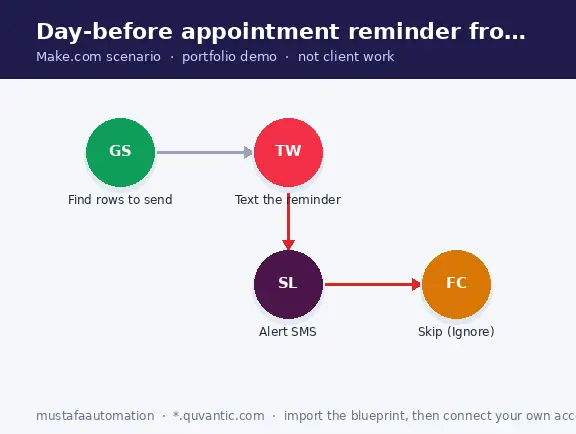
1. Find rows to send
google-sheets:filterRows · Search rows · Google Sheets
A flag column marks rows that still need this action.
from:"drive"spreadsheetId:""sheetId:""includesHeaders:truetableFirstRow:"A1:Z1"valueRenderOption:"FORMATTED_VALUE"dateTimeRenderOption:"FORMATTED_STRING"limit:20filter:[[{"a": "A", "o": "text:equal", "b": "YES"}]]
2. Text the reminder
twilio:SendSMS · Send an SMS · Twilio
One SMS per flagged row. The phone is column C.
to:"{{1.2}}"from:"YOUR_TWILIO_NUMBER"message:"Reminder: {{1.4}} for {{1.1}} at {{1.3}}."
3. Alert SMS — error handler
slack:CreateMessage · Send a message · Slack
SMS failed for a reminder row.
channelWType:"list"channelType:"public"channel:""text:"SMS failed for a reminder row."mrkdwn:trueparse:false
4. Skip (Ignore) — error handler
builtin:Ignore · Skip (Ignore) · Flow control
One bad number should not stop the rest of the rows.
No mapped fields. Configure the module after import, or it only passes the bundle through.
Diagram
flowchart LR
  rows(("1 · Find rows to send"))
  act(("2 · Text the reminder"))
  rows --> act
  act -->|"error"| act_alert
  act_alert(("3 · Alert SMS"))
  act_directive(("4 · Skip (Ignore)"))
  act_alert --> act_directive
Setup
- In Make, create a scenario, open the three-dot menu at the bottom of the editor, and choose Import Blueprint. Select
blueprint.json. - Open every red module and pick or create the connection. Red means the account is not selected yet.
- Schedule: Every morning at 08:00. You set the flag the evening before, or with a formula.
- Create the spreadsheet tab this scenario expects, with a header row in row 1:
- A remind — YES to text
- B name
- C phone
- D when
- E event type
- Select that spreadsheet and sheet on every Google Sheets module. The ids are blank in the file.
- Run once with the bundled
sample-input.json. Fictional payload. Paste it into the first module when you run the scenario once. - Check the output bundle of each module before you turn the schedule on.
Connections
- Google Sheets — create a connection and select it on every Google Sheets module. The blueprint leaves
__IMTCONN__unset on purpose. - Twilio — create a connection and select it on every Twilio module. The blueprint leaves
__IMTCONN__unset on purpose. - Slack — create a connection and select it on every Slack module. The blueprint leaves
__IMTCONN__unset on purpose.
Replace these placeholders in the HTTP modules before the first live run:
YOUR_TWILIO_NUMBER
Nothing in the file is a live connection id, webhook URL, or API key. Make rejects another team's connection id at import, so the slots are empty on purpose.
Data mapping
References use the module id: {{1.subject}} is the subject field of module 1. Sheets columns are zero-based and backticked ({{1.0}} is column A) so a renamed header does not break the map.
- Each matching row is its own bundle. Column letters in the filter are the sheet's own filter, not a scenario filter.
Error handling
Scenario settings: maxErrors 3, dlq false, sequential false, autoCommit true. After this many consecutive failed runs Make deactivates a scheduled scenario.
- Module 2 (Text the reminder) handles errors with
builtin:Ignore. One bad number should not stop the rest of the rows.
Customization
- Clear or change the flag column inside the action if you do not want the same row processed again tomorrow.
- Swap any
YOUR_*value for the id from your own account. Do not commit the filled-in file. - Duplicate the scenario before you change the prompt, so you can diff against this demo later.
Time saved
About 2 minutes an appointment of sending the reminder by hand.
Files
| File | What it is |
|---|---|
blueprint.json | Import this into Make. |
sample-input.json | Fictional bundle for the first run. |
diagram.png | Flow diagram. |
diagram.mmd | Mermaid source for the same flow. |