MakeChecked blueprint4 nodes
WooCommerce order sync to Sheets and an order note
Log a WooCommerce order webhook and write an order note back through the REST API.
Portfolio reference build with demo data and placeholder credentials, not a client deployment.
Pain
Kills the CSV between the store, the sheet, accounting, and the VIP Slack alert.
Solution
Log a WooCommerce order webhook and write an order note back through the REST API.
Impact · From the blueprint
About 2 minutes per order of export and copy, plus the note that used to be typed by hand.
- Intermediate
- Validated
- Auto path
- Webhooks
- Google Sheets
- Slack
- WooCommerce
Library status: documented blueprint, structurally validated. Checked against Make's blueprint shape and a module allowlist. Not imported into a Make account.
Step inspector
The first step shows the checked-in sample payload.Later steps name the node. They are not a live execution.
Guardrails
No approval, retry, or demo-gate node was detected by name. Read the README before connecting live credentials.
Credential ids in the JSON are placeholders. These files are portfolio demos.
Deploy this for your business
Tell us this slug and what still happens by hand. We will map it onto your accounts. This page is not a claim that the blueprint already runs for a customer.
README
Portfolio demo by Mustafa (mustafaautomation). Not client work. Connect your own accounts after import. Live walkthroughs, when published, sit on a subdomain of quvantic.com.
Category: E-commerce
Difficulty: intermediate
Apps: Webhooks, Google Sheets, Slack, WooCommerce
Test status: documented blueprint, structurally validated
Problem
WooCommerce stores often run on a host that already has webhooks, and the office still exports orders to a sheet for the packer. This demo logs the order, pings Slack, and writes a note back onto the order so the shop admin shows that Make saw it.
Who it's for
WordPress shops whose packer lives in a spreadsheet, not in wp-admin.
Module-by-module walkthrough
Ids match the blueprint. A router runs every route whose filter passes. An error handler runs only when that module throws.
1. Catch order.created
gateway:CustomWebHook · Custom webhook · Webhooks
WooCommerce posts the order JSON to the hook.
No mapped fields. Configure the module after import, or it only passes the bundle through.
2. Log the order
google-sheets:addRow · Add a row · Google Sheets
Uses the billing email, which is what the packer needs.
from:"drive"mode:"select"spreadsheetId:""sheetId:""includesHeaders:trueinsertDataOption:"INSERT_ROWS"valueInputOption:"USER_ENTERED"values:{"0": "{{now}}", "1": "{{1.number}}", "2": "{{1.billing.email}}", "3": "{{1.total}}", "4": "{{1.status}}"}
3. Write the order note
http:ActionSendData · Make a request · HTTP
Shows in wp-admin that the scenario ran. Customer notes stay false so the buyer does not see it.
url:"https://shop.example.com/wp-json/wc/v3/orders/{{1.id}}/notes"serializeUrl:falsemethod:"post"headers:[{"name": "Accept", "value": "application/json"}, {"name": "Content-Type", "value": "application/json"}]qs:[{"name": "consumer_key", "value": "YOUR_WOO_CONSUMER_KEY"}, {"name": "consumer_secret", "value": "YOUR_WOO_CONSUMER_SECRET"}]bodyType:"raw"parseResponse:truecontentType:"application/json"data:"{\"note\":\"Logged to the packing sheet by the portfolio demo scenario.\",\"customer_note\":false}"timeout:""shareCookies:falseca:""rejectUnauthorized:truefollowRedirect:trueuseQuerystring:falsegzip:trueuseMtls:falsefollowAllRedirects:false
4. Alert Woo note — error handler
slack:CreateMessage · Send a message · Slack
Order note failed for Woo order {{order.number}}.
channelWType:"list"channelType:"public"channel:""text:"Order note failed for Woo order {{1.number}}."mrkdwn:trueparse:false
5. Skip (Ignore) — error handler
builtin:Ignore · Skip (Ignore) · Flow control
The note failed. The sheet row is already there. Skip.
No mapped fields. Configure the module after import, or it only passes the bundle through.
6. Ping the packer channel
slack:CreateMessage · Send a message · Slack
Only processing orders reach the channel. The sheet row and the order note already happened.
Filter Processing orders: [[{"a": "{{1.status}}", "o": "text:equal", "b": "processing"}]]
channelWType:"list"channelType:"public"channel:""text:"*Woo order* {{1.number}} {{1.currency}} {{1.total}} — {{1.status}} — {{1.billing.email}}"mrkdwn:trueparse:false
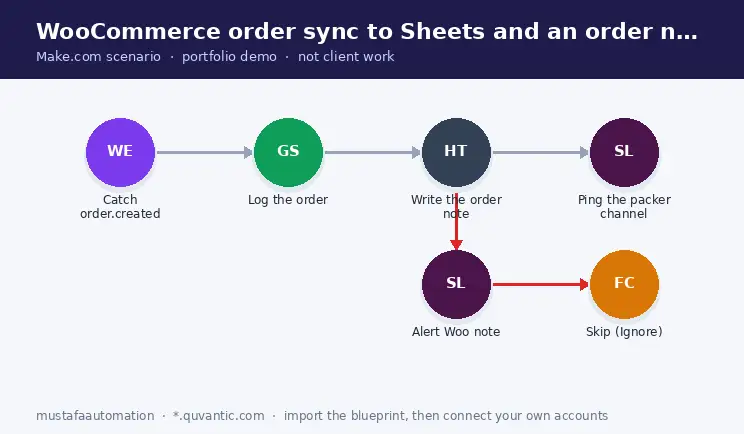
Diagram
flowchart LR
  order(("1 · Catch order.created"))
  log(("2 · Log the order"))
  order --> log
  note(("3 · Write the order note"))
  log --> note
  note -->|"error"| note_alert
  note_alert(("4 · Alert Woo note"))
  note_directive(("5 · Skip (Ignore)"))
  note_alert --> note_directive
  ops(("6 · Ping the packer channel"))
  note --> ops
Setup
- In Make, create a scenario, open the three-dot menu at the bottom of the editor, and choose Import Blueprint. Select
blueprint.json. - Open every red module and pick or create the connection. Red means the account is not selected yet.
- Schedule: Immediately. WooCommerce webhook topic order.created.
- Create the spreadsheet tab this scenario expects, with a header row in row 1:
- A received_at
- B order id
- C email
- D total
- E status
- Select that spreadsheet and sheet on every Google Sheets module. The ids are blank in the file.
- Run once with the bundled
sample-input.json. Fictional payload. Paste it into the first module when you run the scenario once. - Check the output bundle of each module before you turn the schedule on.
Connections
- Google Sheets — create a connection and select it on every Google Sheets module. The blueprint leaves
__IMTCONN__unset on purpose. - Slack — create a connection and select it on every Slack module. The blueprint leaves
__IMTCONN__unset on purpose.
Replace these placeholders in the HTTP modules before the first live run:
YOUR_WOO_CONSUMER_KEYYOUR_WOO_CONSUMER_SECRET
Nothing in the file is a live connection id, webhook URL, or API key. Make rejects another team's connection id at import, so the slots are empty on purpose.
Data mapping
References use the module id: {{1.subject}} is the subject field of module 1. Sheets columns are zero-based and backticked ({{1.0}} is column A) so a renamed header does not break the map.
- Billing email is nested:
{{order.billing.email}}. - The note call is POST /wp-json/wc/v3/orders/{{order.id}}/notes with consumer key and secret on the query string. Replace both YOUR_ values and the shop host.
Error handling
Scenario settings: maxErrors 3, dlq false, sequential false, autoCommit true. After this many consecutive failed runs Make deactivates a scheduled scenario.
- Module 3 (Write the order note) handles errors with
builtin:Ignore. The note failed. The sheet row is already there. Skip. - Module 6 runs only when filter Processing orders passes. A blocked bundle stops on that path. It is not an error.
Customization
- Change shop.example.com to your store.
- Filter the Slack module on status processing if you do not want pending orders in the channel.
- Add line items once you have seen the real payload's line_items array.
- Swap any
YOUR_*value for the id from your own account. Do not commit the filled-in file. - Duplicate the scenario before you change the prompt, so you can diff against this demo later.
Time saved
About 2 minutes per order of export and copy, plus the note that used to be typed by hand.
Files
| File | What it is |
|---|---|
blueprint.json | Import this into Make. |
sample-input.json | Fictional bundle for the first run. |
diagram.png | Flow diagram. |
diagram.mmd | Mermaid source for the same flow. |