ZapierChecked blueprint5 nodes
Route shared Outlook mail to the right Teams channel
Each email in a shared Outlook folder is classified by team and posted to that team's Microsoft Teams channel with a one-line summary.
Portfolio reference build with demo data and placeholder credentials, not a client deployment.
Pain
Stops the inbox from taking the first two hours of the morning. The blueprint tags threads, flags urgent ones to Slack, and writes a draft.
Solution
Each email in a shared Outlook folder is classified by team and posted to that team's Microsoft Teams channel with a one-line summary.
Impact · From the blueprint
The morning forwarding round goes away; usually 30 to 45 minutes a day for whoever owns the shared inbox.
- Intermediate
- Validated
- Auto path
- Microsoft Outlook
- AI by Zapier
- Formatter by Zapier
- Filter by Zapier
- Microsoft Teams
Library status: passing. Schema, field mapping, task count, and Code-step unit tests pass. Not built in a live Zapier account.
Step inspector
The first step shows the checked-in sample payload.Later steps name the node. They are not a live execution.
Guardrails
- Filter by Zapier · Only continue if...
Credential ids in the JSON are placeholders. These files are portfolio demos.
Deploy this for your business
Tell us this slug and what still happens by hand. We will map it onto your accounts. This page is not a claim that the blueprint already runs for a customer.
README
Portfolio demo by Mustafa (mustafaautomation). Not client work. The people, companies, and numbers in it are made up. Rebuild it in your own Zapier account. Nothing here is connected to anyone's account.
Category: Email
Difficulty: intermediate
Apps: Microsoft Outlook, AI by Zapier, Formatter by Zapier, Filter by Zapier, Microsoft Teams
Zapier plan: Professional (multi-step Zap: 4 steps after the trigger; Filter by Zapier; Formatter by Zapier; AI by Zapier)
Tasks per run: 2
Test status: passing (schema, mapping scope, task count)
Problem
Everything sent to info@ lands in one shared mailbox. One person forwards emails to sales, support, and accounts all morning, and anything that arrives while they are out waits a day.
Who it's for
Microsoft 365 companies with a shared contact mailbox and teams that work in Microsoft Teams channels.
How the Zap runs
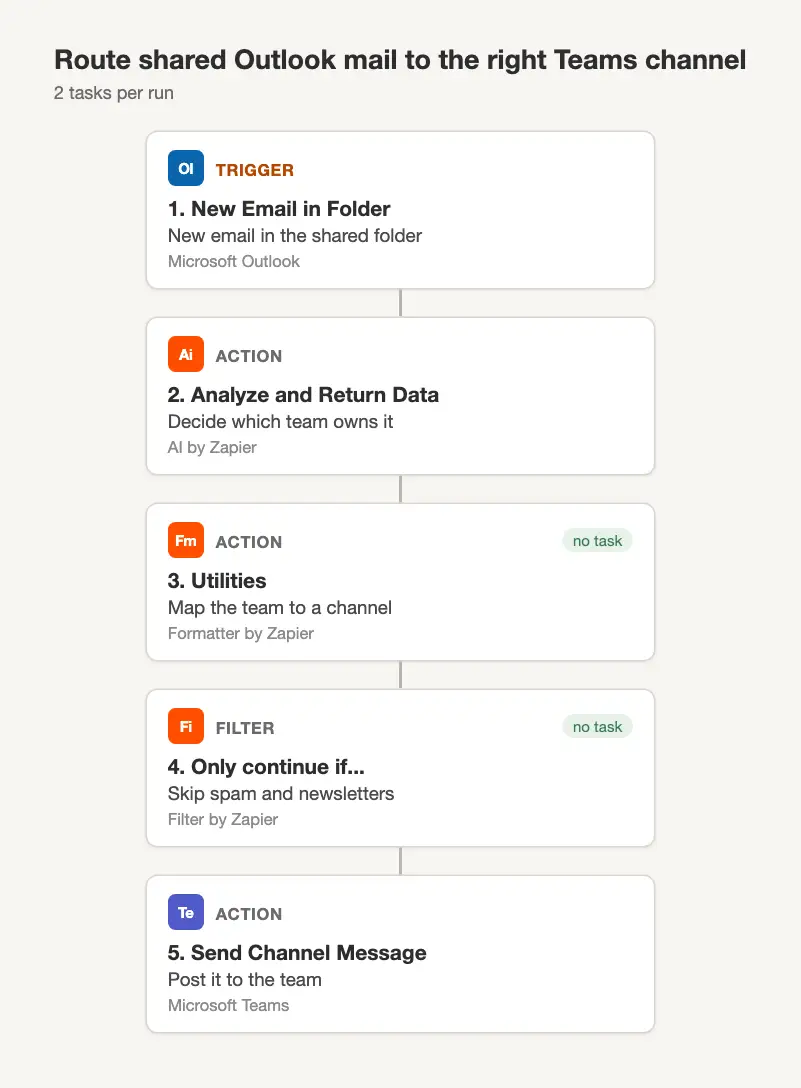
flowchart TD
  s1["1. Microsoft Outlook: New Email in Folder<br/>New email in the shared folder"]
  s2["2. AI by Zapier<br/>Decide which team owns it"]
  s1 --> s2
  s3["3. Formatter by Zapier<br/>Map the team to a channel"]
  s2 --> s3
  s4{{"4. Filter by Zapier<br/>Skip spam and newsletters"}}
  s3 --> s4
  s5["5. Microsoft Teams<br/>Post it to the team"]
  s4 -->|"passes"| s5
Build it in the Zapier editor
Zapier has no import file for a Zap like this one, so it is built by hand from the steps below. zap.json is the same Zap in a machine-readable form (schema), and zap.yaml is the same document in YAML.
A value like [2. vendor] means: click the field, open step 2 in the data picker, and choose vendor. Plain text is typed as shown. YOUR_... is a value from your own account.
Before you start
- Have these ready from your own accounts:
YOUR_TEAMS_TEAM.
Steps
1. Trigger: New email in the shared folder
App: Microsoft Outlook · Event: New Email in Folder · polling (Zapier checks on your plan's update interval) · Tasks: 0
Fires for each email in the shared folder the generic address delivers to.
| Field | Value |
|---|---|
| Folder | Shared/Info inbox |
Fields this library maps from the trigger: message_id, from_email, from_name, subject, received_at, body_preview, body_text. Zapier shows them with its own labels; pick the one with the same meaning.
2. Action: Decide which team owns it
App: AI by Zapier · Event: Analyze and Return Data · Tasks: 1
Returns one team name from a fixed list plus a one-line summary for the channel post.
| Field | Value |
|---|---|
| Model | Default (fast) |
| Instructions | You route emails sent to a company's general address. Return team (exactly one of: sales, support, accounts, partnerships, ignore) and summary (one sentence under 25 words saying what the sender wants). Use ignore for spam and marketing newsletters. |
| Input data | From: [1. from_name] <[1. from_email]> Subject: [1. subject] [1. body_text] |
| Output fields | team, summary |
Later steps can map: team, summary.
3. Action: Map the team to a channel
App: Formatter by Zapier · Event: Utilities · Tasks: 0
A lookup table keeps channel names out of the AI prompt, so renaming a channel is a one-cell change.
| Field | Value |
|---|---|
| Transform | Lookup Table |
| Lookup Key | [2. team] |
| Lookup Table › sales | Sales inbox |
| Lookup Table › support | Support triage |
| Lookup Table › accounts | Accounts payable |
| Lookup Table › partnerships | Partnerships |
| Fallback Value | Front desk |
Later steps can map: output.
4. Filter: Skip spam and newsletters
App: Filter by Zapier · Event: Only continue if... · Tasks: 0
Emails the model marked ignore stop here instead of cluttering a channel.
Only continue if: [2. team] (Text) Does not exactly match ignore.
Most runs pass this filter.
5. Action: Post it to the team
App: Microsoft Teams · Event: Send Channel Message · Tasks: 1
The channel post carries the summary and sender so the team can claim it without opening the shared mailbox.
| Field | Value |
|---|---|
| Team | YOUR_TEAMS_TEAM |
| Channel | [3. output] |
| Message Text Format | markdown |
| Message Text | [1. subject] from [1. from_name] ([1. from_email]) [2. summary] Open the shared Info inbox to reply. |
Later steps can map: id.
Test it
Use sample-trigger.json as the test record. For an instant or webhook trigger, send it to the trigger once; for a polling trigger, create a matching record in the app and click Test trigger. Then test each step in order and read its output before you turn the Zap on.
{
  "message_id": "AAMkAGQ5ZTBmYjI0LTk3",
  "from_email": "procurement@initech.example",
  "from_name": "Bill Lumbergh",
  "subject": "Bulk order for 40 office chairs",
  "received_at": "2026-11-24T10:02:41Z",
  "body_preview": "We are fitting out a new floor in January and need 40 ergonomic chairs.",
  "body_text": "Hello,\n\nWe are fitting out a new floor in January and need 40 ergonomic chairs with delivery to our Austin office. Could you send a quote with lead times?\n\nThanks,\nBill"
}
Plan and task usage
| Step | App | Tasks |
|---|---|---|
| 1. New email in the shared folder | Microsoft Outlook | 0 |
| 2. Decide which team owns it | AI by Zapier | 1 |
| 3. Map the team to a channel | Formatter by Zapier | 0 |
| 4. Skip spam and newsletters | Filter by Zapier | 0 |
| 5. Post it to the team | Microsoft Teams | 1 |
A typical run uses 2 tasks. Zapier does not charge tasks for triggers, Filter, Paths, Formatter, Delay, Looping, Digest, Storage, or Zapier Tables steps. AI by Zapier is counted here as 1 task; Zapier prices it by model tier, so a larger model can cost more.
Minimum plan: Professional, because of: multi-step Zap: 4 steps after the trigger; Filter by Zapier; Formatter by Zapier; AI by Zapier. The Free plan only runs two-step Zaps (a trigger and one action) and leaves out Filters, Paths, Formatter, webhooks, AI by Zapier, and premium apps.
Customize
- Add more teams by adding them to the instruction list and a row to the lookup table.
- Post urgent support mail to a second channel by adding Paths on the team value.
Limits
- Teams messages come from the connected account, so pick a service account rather than a person who might leave.
Time saved
The morning forwarding round goes away; usually 30 to 45 minutes a day for whoever owns the shared inbox.
Files
| File | What it is |
|---|---|
zap.json | The Zap, step by step, in schema 1.0.0. |
zap.yaml | The same document in YAML. |
sample-trigger.json | Fictional trigger record for the first test. |
diagram.png | The step list, drawn like the Zapier editor. |